Free tool
Image Resizer
Change the size of any image
Set new dimensions in pixels or as a percentage, keep the proportions and download your resized JPG, PNG or WebP.
Image Resizer
Private by design
Your files are processed by your browser, on this device. They are not uploaded to Hatchio or anyone else, and nothing is kept once you leave the page.
How it works
01Choose an image
Drop a JPG, PNG, WebP, GIF or BMP into the box, or choose one from your device.
02Set the new size
Type a width or height, pick a percentage or start from a preset. The ratio stays locked unless you unlock it.
03Resize and download
Compare the new dimensions and file size with the original, then download.
A real example
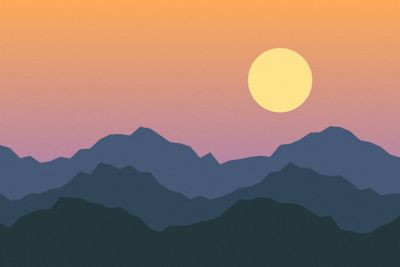

A 1600×1067 JPG photo of 255 KB, resized to 640×427 at quality 85, became 16 KB.
Made with this tool on a sample file; the sizes are measured, not estimated.
Good to know
- Transparent PNG and WebP images stay transparent when saved as PNG or WebP.
- If you choose JPG for a transparent image, we warn you first: transparent areas become white.
- Presets fit your image inside the size without stretching it. For an exact shape, crop first.
- Results can be up to 8,192 pixels on a side and about 16.7 million pixels in total.
Questions and answers
How do I resize an image without losing quality?
Making an image smaller keeps it sharp. Choose PNG or a high JPG or WebP quality for the best result. Making it much larger cannot add detail that was not there.
Can I keep the same aspect ratio?
Yes. Keep aspect ratio is on by default, so changing the width updates the height to match, and the other way round.
Are my images uploaded?
No. Your browser resizes the image on your device and nothing is sent anywhere.